How to Make AI Presenter Videos with Synthesia (2026): From Script to Export
by Jordan · AI Video Desk — Jordan is a pen name used by a Zic Digital editor who runs the AI Video Desk. About us
Five steps to an AI presenter video in Synthesia: write a scene-by-scene script, pick an avatar and voice, build scenes, add captions, then share or download. Plus the free plan's limits and when HeyGen fits better.
Synthesia turns a script into a video with an AI presenter — no camera, microphone or studio needed. It works a lot like building slides: each scene gets a few lines, and the avatar speaks them for you. Here is a five-step workflow from a blank page to a video you can send to learners, colleagues or clients.
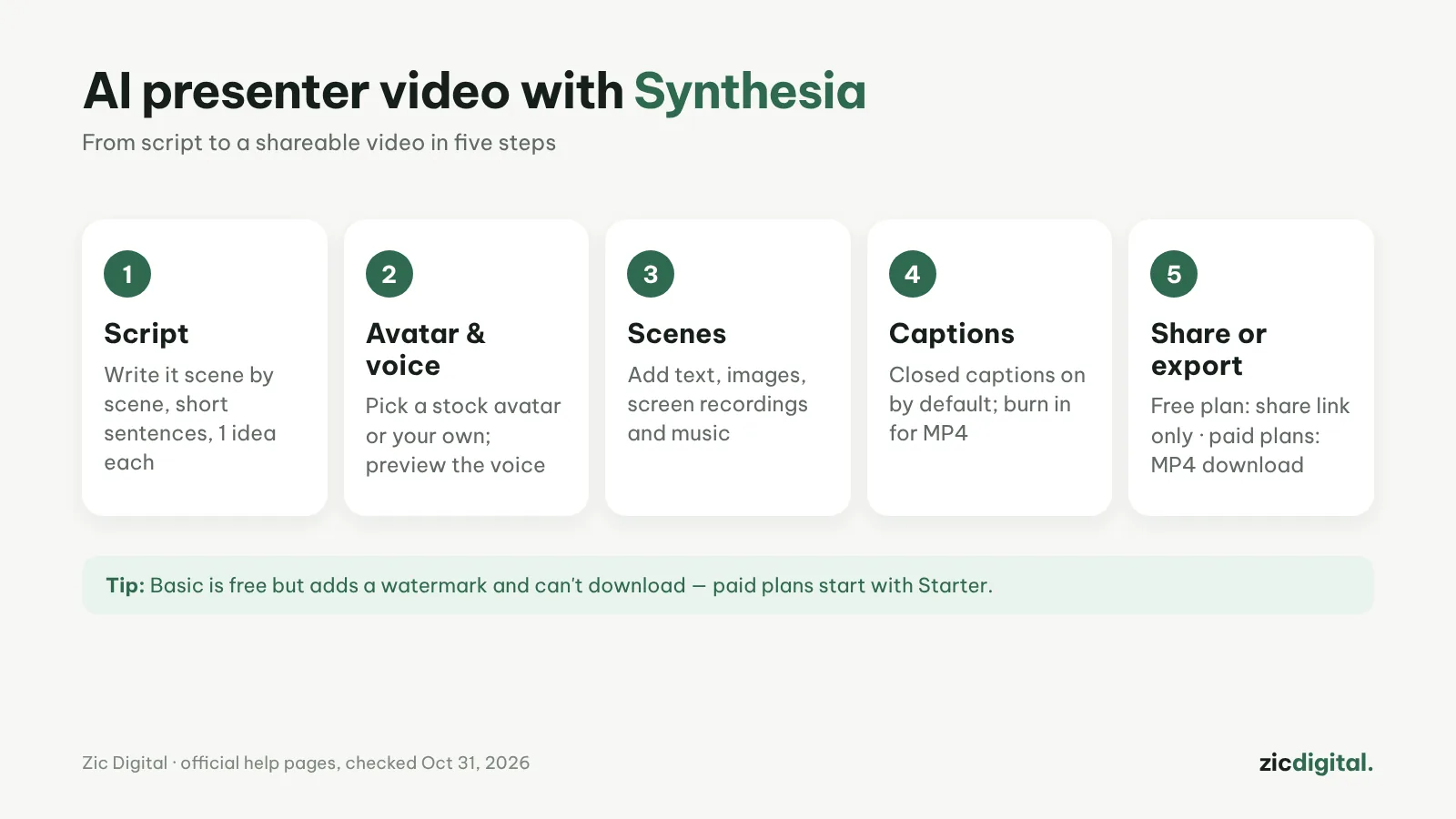
1. Write the script scene by scene
Split the content into short scenes, one idea each, with short sentences that read well aloud. A 2–3 minute tutorial usually needs 6–10 scenes. Spell numbers and abbreviations the way you want them spoken, because AI voices often mispronounce names. If you already have slides, a PDF or a web page, Synthesia's AI assistant can turn them into a draft video you then edit.
2. Choose an avatar and a voice
The free plan includes 9 avatars; paid plans offer 125+ and let you create your own (Starter includes 3 personal avatars). Preview a few voices before deciding, and keep one voice across a series so viewers get used to it.
3. Build the scenes
Add key text, illustrations, screenshots or screen recordings next to the avatar. Keep one message per scene, with less text on screen than in the voiceover. Light background music keeps the video from feeling flat.
4. Add captions
Closed captions are on by default, and viewers can toggle them in Synthesia's player. They are not included in downloaded MP4 files: for on-screen text, turn on burned-in captions before generating, or use dynamic captions styled with your brand. You can also download .srt or .vtt files to upload with the video on YouTube.
5. Share or download
Generate the video, wait for it to finish, then share it by link. Basic only shares by link and adds a watermark; downloading the MP4 and removing the Synthesia logo starts with Starter ($19/month). For other languages, use dubbing; one-click translation with a language-picker player is currently an Enterprise feature.
Good to know
- All AI features (video generation, dubbing, surveys, the Syren assistant) draw from one shared credit pool; check your balance before a long video.
- For vertical Shorts or effect-heavy sales videos, HeyGen is often a better fit — see HeyGen vs Synthesia.
- Publishing on YouTube: if viewers might think the avatar is a real person, turn on the altered or synthetic content disclosure at upload. See monetizing AI videos on YouTube.
Quick answers
How much can I make on the free plan? Basic gives 10 minutes of video generation or dubbing a month — enough to try a few short videos before paying.
What do I need for my own avatar? A paid plan, a short self-recording following Synthesia's guide (at home, in an office or outdoors) and your consent to use your likeness.
Do I need a custom voice? No. If you only need a voiceover for video you already have, ElevenLabs is cheaper and more flexible — see ElevenLabs pricing 2026.
Steps based on official help pages, checked October 31, 2026; the interface may change with updates — no affiliate links.
Read more: Synthesia review · HeyGen vs Synthesia 2026 · HeyGen review · HeyGen pricing 2026 · AI voice and music tools for YouTube · YouTube creator toolkit 2026