CapCut Export Settings for YouTube and TikTok: No Logo, No Blur
The CapCut export settings for YouTube, Shorts, TikTok and Reels, plus how to avoid the CapCut logo and blurry uploads.
Settings to use
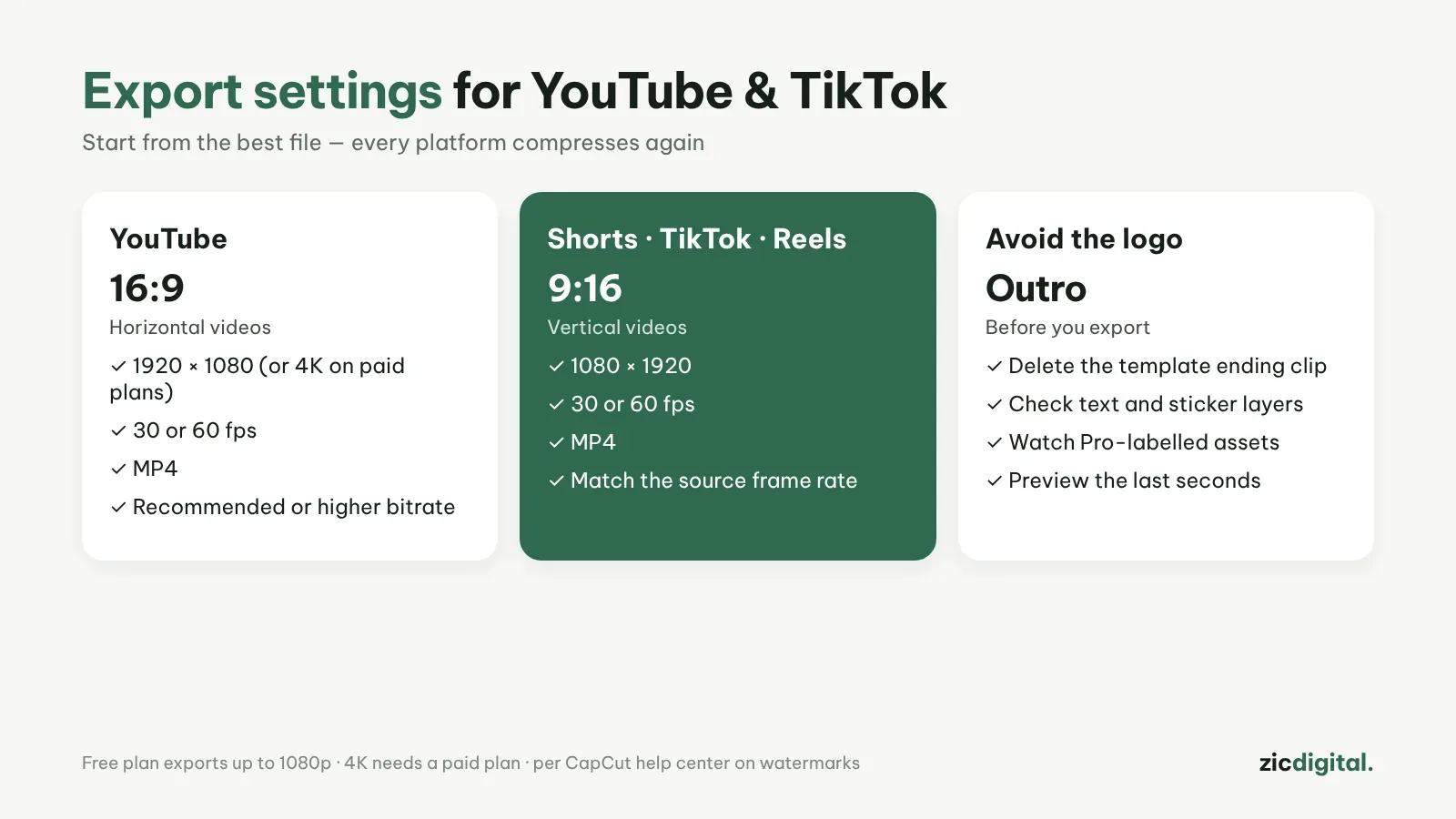
- YouTube (horizontal): 16:9, 1920×1080, 30 or 60 fps, MP4
- Shorts, TikTok, Reels (vertical): 9:16, 1080×1920, 30 or 60 fps, MP4
- Bitrate: choose the recommended level or higher, not the low option
- 4K: paid plans only; the free plan exports up to 1080p
Why does my video look blurry after uploading?
- It was exported below 1080p
- The aspect ratio is wrong, for example a 16:9 export posted as a Short
- The export frame rate differs from the original footage
YouTube and TikTok both compress your video again after upload, so start from the best file you can.
Avoid the CapCut logo
According to CapCut's help center, most exports have no watermark. The logo usually comes from a template's ending clip (outro) or assets marked Pro. Before exporting, scroll to the end of the timeline, delete the outro with the CapCut logo, and check your text and sticker layers too.
See also: CapCut plan prices · making YouTube Shorts
See also: free video editors with no watermark · DaVinci Resolve export settings for YouTube · removing the InShot and Filmora watermark
The full YouTube creator toolkit: YouTube Creator Toolkit 2026
See also: Music for YouTube Without Copyright Claims · How to Make an AI Voiceover for YouTube with ElevenLabs