CapCut Auto Captions: How to Use Them and Fix Mistakes
Create auto captions in CapCut on desktop and mobile, with tips to fix misheard words and what the free plan limits.
On desktop
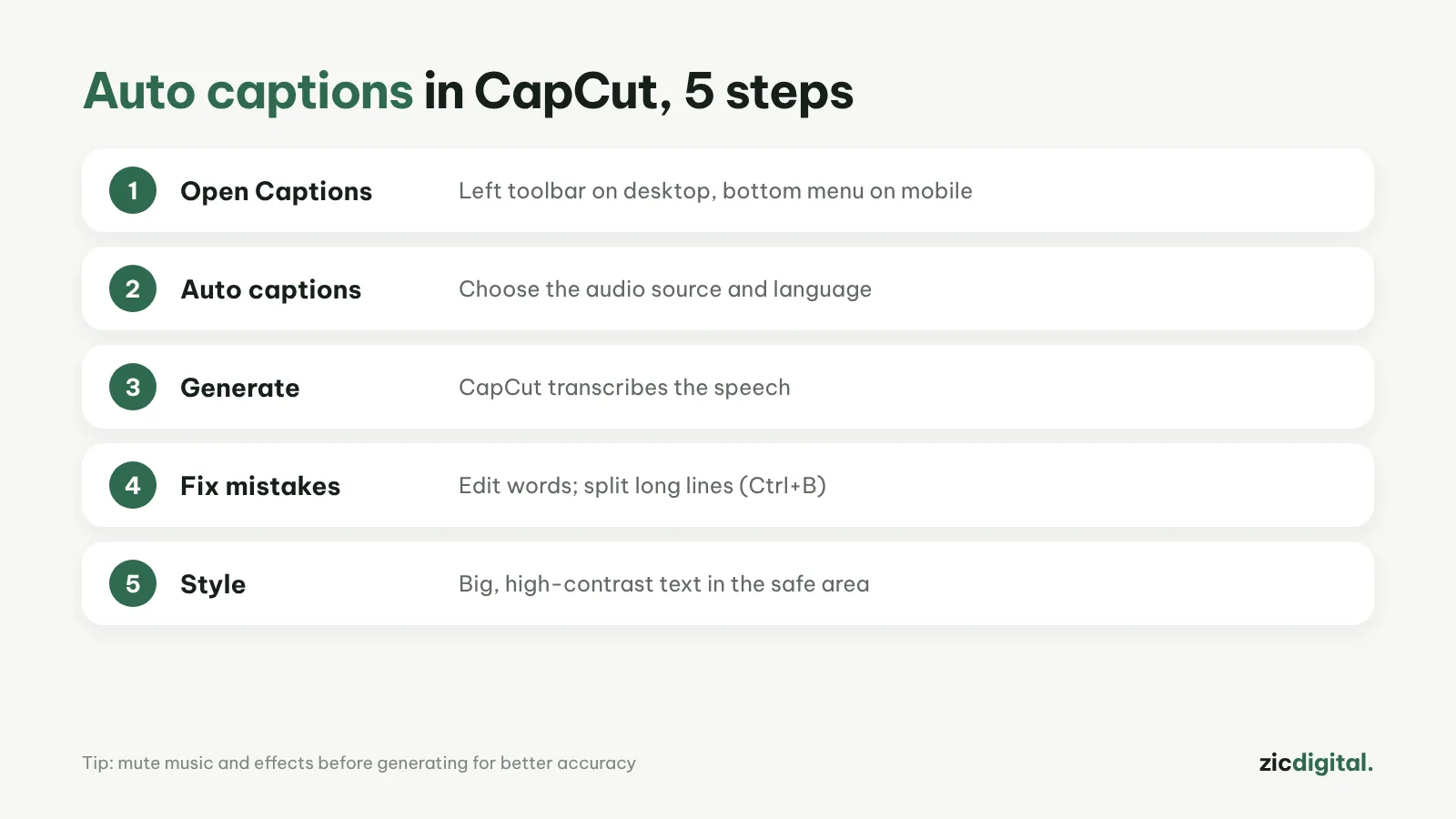
- Open your project and click Captions in the left toolbar.
- Choose Auto captions, then pick the audio source and language.
- Click Generate, then fix the text and timing right on the timeline.
On mobile
Tap Captions in the bottom menu, choose Auto captions, confirm the language and tap Generate. Tap any caption to edit it.
Tips for more accurate captions
- Mute background music and sound effects before generating
- Speak slowly and clearly; avoid people talking over each other
- Split long lines at natural pauses (Ctrl+B on desktop)
- If there are too many errors: delete them all, mute the music and generate again
Does the free plan have limits?
Yes. CapCut caps AI features on the free plan and changes those caps fairly often, so check the current numbers in the app. Some features, such as speaker detection or .srt export, may only be available on desktop or web, depending on your region.
Next: make YouTube Shorts in CapCut · CapCut Review 2026
See also: best free auto caption apps · captions in Adobe Premiere · captions in Clipchamp · editing by text in Descript